
Pas besoin de savoir coder : suis les étapes dans l'ordre, copie-colle les commandes, et Agora tourne chez toi en une dizaine de minutes.
Node.js est le moteur qui fait tourner Agora. Sur le site officiel, clique sur le bouton LTS pour Windows (version 22 ou plus récente), lance le fichier téléchargé et clique sur Suivant jusqu'au bout : les options par défaut conviennent.
Ouvrir nodejs.orgAgora est écrit en JavaScript. Node.js, c'est le programme qui sait lire ce code et le faire tourner sur ton PC, un peu comme un lecteur vidéo lit un film. Tu l'installes une fois, et c'est tout.
Télécharge l'archive, puis fais un clic droit dessus → Extraire tout… Choisis un dossier facile à retrouver, par exemple Documents\Agora.
Ouvre le dossier extrait (celui qui contient le fichier package.json). Clique dans la barre d'adresse en haut de la fenêtre, efface ce qui est écrit, tape powershell puis appuie sur Entrée.
Une fenêtre bleue ou noire s'ouvre : c'est là qu'on tape les commandes.
Copie ces trois lignes d'un coup et colle-les dans PowerShell. La première télécharge ce dont Agora a besoin (1 à 3 minutes, c'est normal).
npm install
npm run build
npm start
Quand la ligne Serveur API démarré sur http://localhost:3067 s'affiche, c'est gagné. Si Windows te demande d'autoriser Node.js sur le réseau, clique sur Autoriser : c'est ce qui permettra d'ouvrir Agora depuis ton téléphone.
npm start.Sur Mac : Cmd + Espace, tape Terminal, puis Entrée. Sur Linux : Ctrl + Alt + T sur la plupart des distributions.
Mac : télécharge l'installateur LTS (version 22 ou plus récente) sur nodejs.org et suis les étapes.
Ouvrir nodejs.orgUbuntu / Debian : colle ces deux lignes (ton mot de passe te sera demandé, il ne s'affiche pas quand tu le tapes, c'est normal).
curl -fsSL https://deb.nodesource.com/setup_22.x | sudo -E bash -
sudo apt install -y nodejs unzipCes commandes téléchargent l'archive, la décompressent dans un dossier Agora et entrent dedans.
curl -L https://agora.nolhantirer.space/api/download -o Agora.zip
unzip Agora.zip -d Agora
cd Agoranpm install && npm run build && npm startQuand Serveur API démarré sur http://localhost:3067 s'affiche, c'est prêt.
cd Agora) et tape npm start.Docker fait tourner Agora dans une « boîte » isolée, qui redémarre toute seule avec la machine. Idéal pour un NAS ou un serveur allumé en permanence. Choisis ta méthode :
Crée un dossier agora, et dedans un fichier nommé docker-compose.yml avec ce contenu :
services:
  agora:
    image: nonobzh22/agora:latest
    container_name: agora_app
    restart: unless-stopped
    ports:
      - "3067:3067"
    volumes:
      - ./data:/data
- ./downloads:/downloadsports rend Agora joignable sur le port 3067. ./data contient toutes tes données (comptes, sources, réglages) : garde ce dossier, c'est lui qui survit aux mises à jour. ./downloads reçoit les fichiers téléchargés.
Ouvre un terminal dans ce dossier et lance :
docker compose up -dPortainer : Stacks → Add stack, nomme-la agora. ZimaOS / CasaOS : App Store → Installer une application personnalisée → Importer. Synology : Container Manager → Projet → Créer.
Colle ce contenu. Remplace /DATA/AppData/agora par un dossier de ton NAS (les chemins doivent être complets ici).
services:
  agora:
    image: nonobzh22/agora:latest
    container_name: agora_app
    restart: unless-stopped
    ports:
      - "3067:3067"
    volumes:
      - /DATA/AppData/agora/data:/data
- /DATA/AppData/agora/downloads:/downloadsClique sur Deploy the stack (ou Installer). Au bout de quelques secondes, Agora est accessible sur http://IP-DU-NAS:3067.
Une seule commande suffit. Tes données iront dans ~/agora/data.
docker run -d --name agora_app --restart unless-stopped \
  -p 3067:3067 \
  -v ~/agora/data:/data \
  -v ~/agora/downloads:/downloads \
  nonobzh22/agora:latest
Sur Proxmox, Agora tourne dans un conteneur LXC Debian 12 avec Docker : léger, il redémarre avec le serveur, et une mise à jour tient en une commande. Compte une dizaine de minutes.
Dans Proxmox, clique sur ton stockage local → CT Templates → Templates, cherche debian-12-standard et clique sur Download.
Bouton Create CT (en haut à droite), puis onglet par onglet :
agora, un mot de passe root, et laisse Unprivileged container coché.debian-12-standard.À la fin, ne coche pas encore « Start after created ».
Sélectionne le conteneur → Options → Features → Edit : coche keyctl et Nesting, valide, puis clique sur Start.
Sans ces deux options, Docker refuse de démarrer dans un conteneur non privilégié. Elles restent sûres : le conteneur n'a toujours pas les droits root de ton serveur.
Ouvre la Console du conteneur, connecte-toi en root, puis lance :
ping -c 2 deb.debian.org
apt update && apt upgrade -yC'est le réseau du conteneur, pas Agora. Dans Network, vérifie l'adresse IP et la passerelle, ou repasse en DHCP. Si ping -c 2 1.1.1.1 marche mais pas ping deb.debian.org, c'est le DNS : onglet DNS du conteneur. Redémarre le conteneur après un changement.
Le script officiel de Docker installe tout, Docker Compose compris :
apt install -y curl && curl -fsSL https://get.docker.com | shColle ce bloc d'un coup : il crée le dossier /opt/agora, son fichier de configuration, et démarre Agora.
mkdir -p /opt/agora && cd /opt/agora
cat > docker-compose.yml <<'EOF'
services:
  agora:
    image: nonobzh22/agora:latest
    container_name: agora_app
    restart: unless-stopped
    ports:
      - "3067:3067"
    volumes:
      - ./data:/data
      - ./downloads:/downloads
EOF
docker compose up -dDans /opt/agora/data (comptes, sources, réglages) : c'est lui qui survit aux mises à jour. Les fichiers téléchargés arrivent dans /opt/agora/downloads.
Tape hostname -I et garde la première adresse affichée. Ouvre http://CETTE-ADRESSE:3067 dans ton navigateur et suis l'assistant (étape 2 ci-dessous).
Agora : quand Paramètres → Système t'annonce une nouvelle version, lance dans la console du conteneur :
cd /opt/agora && docker compose pull && docker compose up -dPlugins : rien à taper. Paramètres → Sources, bouton Mettre à jour sur la carte du plugin, ou Tout mettre à jour.
Avant une mise à jour, fais une sauvegarde du conteneur dans Proxmox (Backup → Backup now) : en cas de souci, tu reviens en arrière en un clic.
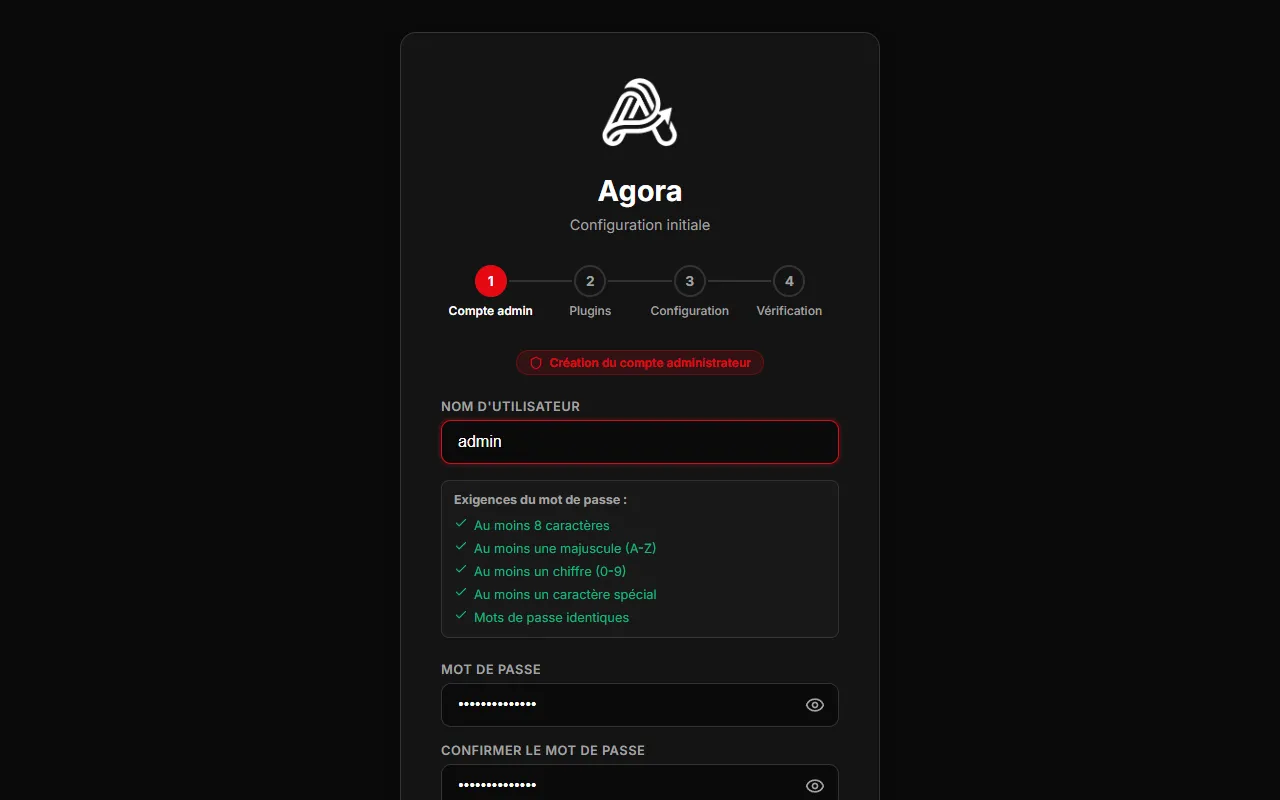
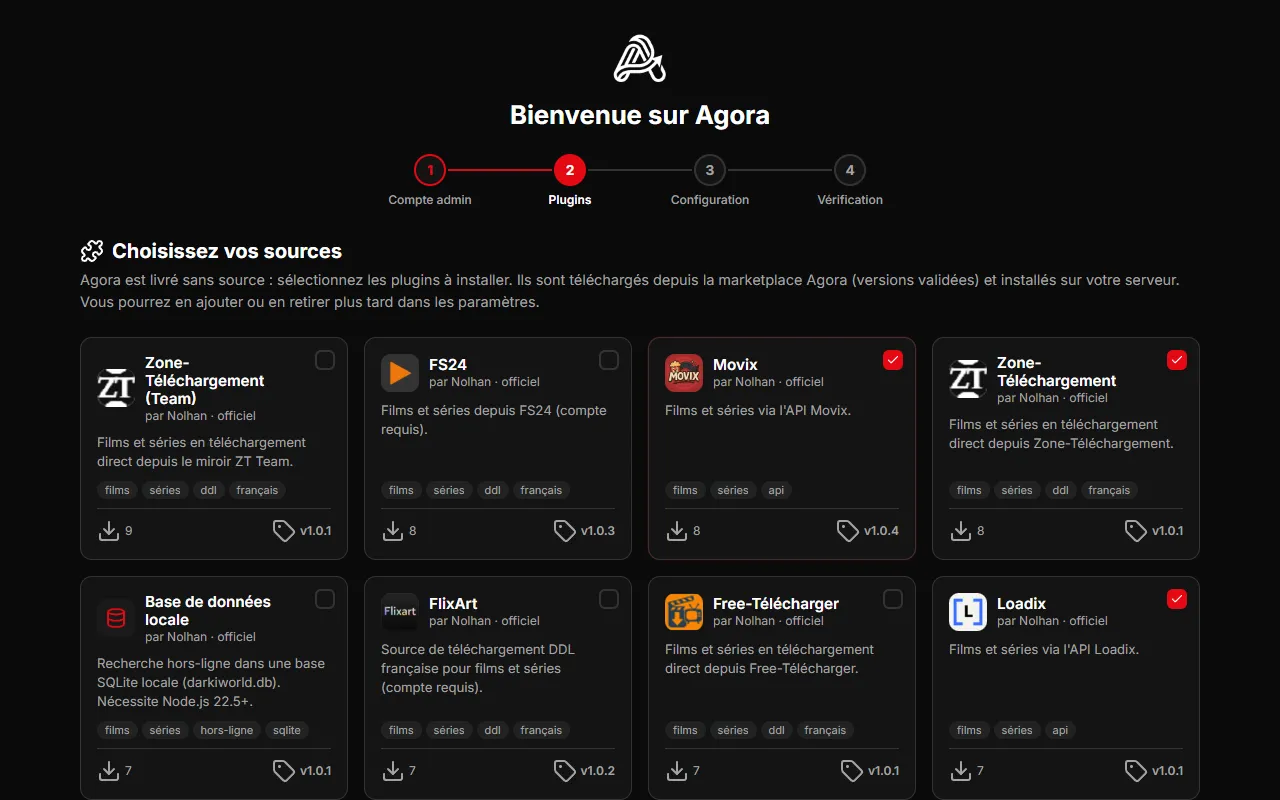
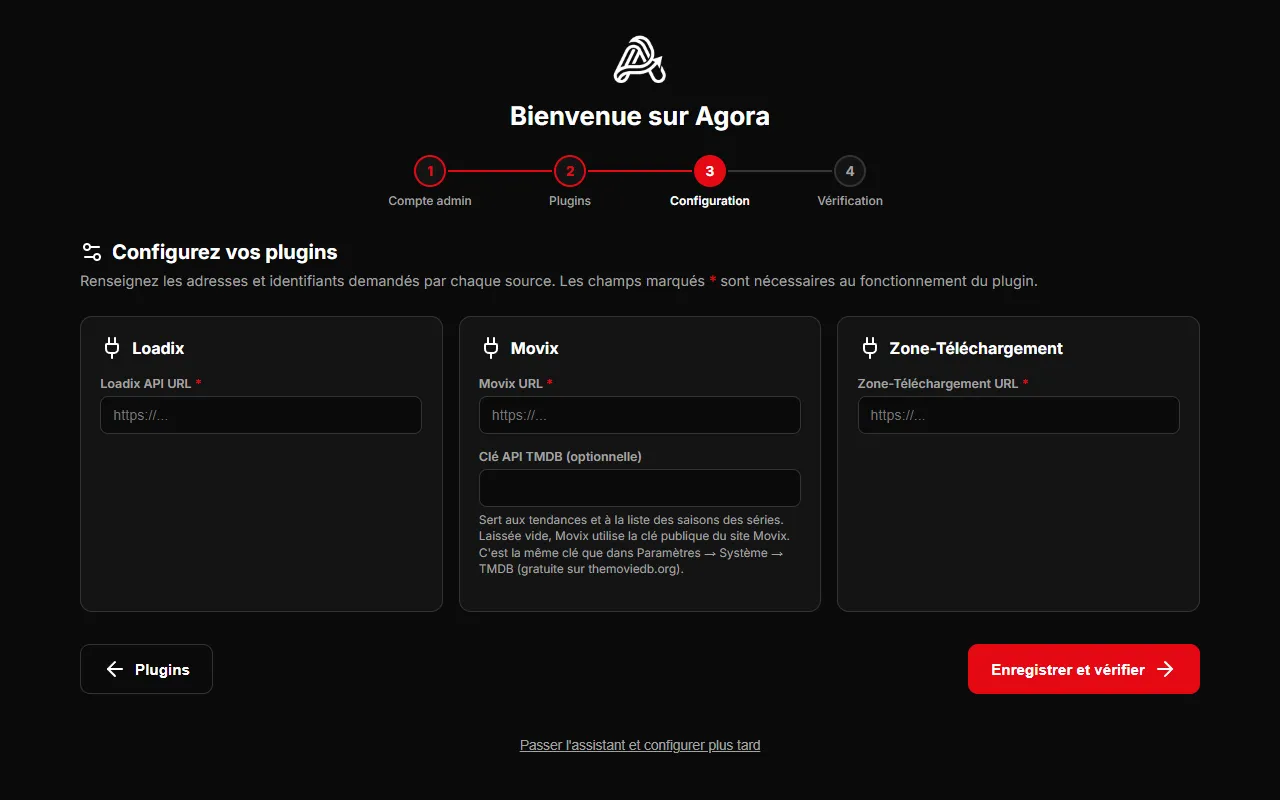
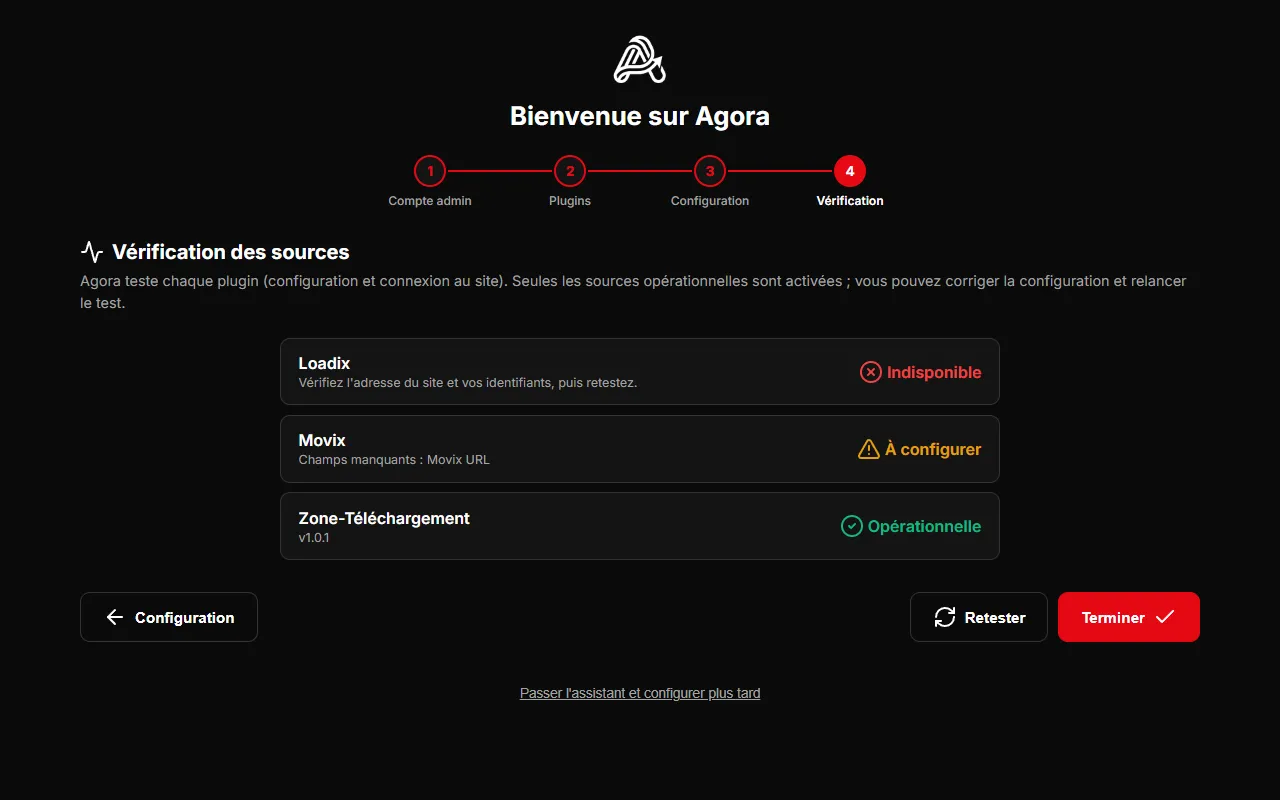
Ouvre ton navigateur et va sur http://localhost:3067 (sur un NAS : http://IP-DU-NAS:3067). Agora te guide en 4 étapes :
Windows : dans PowerShell, tape ipconfig et repère la ligne Adresse IPv4 (par exemple 192.168.1.42).
Mac : Réglages Système → Wi-Fi → Détails → Adresse IP. Linux : tape hostname -I, c'est le premier nombre.
Connecte ton téléphone au même Wi-Fi, puis ouvre http://192.168.1.42:3067 dans son navigateur (avec ta propre adresse).
Tu peux ensuite l'ajouter à l'écran d'accueil pour l'utiliser comme une application.
Dans Paramètres → Système, le bouton Vérifier les mises à jour te dit si une nouvelle version existe. Tes données restent dans le dossier .agora de ton compte (ou data avec Docker) : une mise à jour n'y touche pas.
Windows, Mac, Linux : arrête Agora (ferme la fenêtre), télécharge la nouvelle archive et extrais-la dans le même dossier en remplaçant les fichiers, puis relance les trois commandes npm install, npm run build, npm start.
Docker : dans le dossier du fichier compose, lance la commande ci-dessous. Sur Portainer : ouvre la stack et clique sur Pull and redeploy.
docker compose pull
docker compose up -dRien à refaire. Au premier démarrage, Agora 2.0 récupère tout seul tes comptes, ta configuration et ta base locale, puis réinstalle tes sources dans leur version 2. Les anciens fichiers sont copiés, pas déplacés ; seuls les mots de passe restés en clair dans l'ancienne configuration en sont retirés, une fois à l'abri.
database et sessions). Avec Docker : pour le premier démarrage, garde tes anciens volumes ./sessions:/app/sessions et ./database:/app/database en plus de /data. Une fois la migration vérifiée, tu peux les retirer. Si tu gardes ton ancien docker-compose.yml sans /data, Agora fonctionne quand même : il range ses données dans ./database/agora-data et te le signale dans Paramètres ; ajoute le volume quand tu veux, elles y seront recopiées.Node.js vient d'être installé mais PowerShell ne le voit pas encore. Ferme PowerShell, rouvre-le dans le dossier d'Agora et recommence. Si ça ne suffit pas, redémarre l'ordinateur.
Ta version de Node.js est trop ancienne. Tape node -v : il faut v22 ou plus. Sinon, réinstalle la version LTS depuis nodejs.org.
Agora tourne sûrement déjà dans une autre fenêtre : ferme-la. Tu peux aussi utiliser un autre port :
$env:PORT=3068; npm startSur Mac et Linux : PORT=3068 npm start. Avec Docker : remplace "3067:3067" par "3068:3067".
Vérifie que le téléphone est sur le même Wi-Fi et que tu utilises l'adresse IP de la machine, pas localhost. Sur Windows, autorise Node.js dans le pare-feu : Paramètres → Confidentialité et sécurité → Sécurité Windows → Pare-feu → Autoriser une application → coche Node.js pour les réseaux privés.
Docker n'est pas démarré. Sur PC ou Mac, lance Docker Desktop et attends que la baleine arrête de bouger. Sur Linux : sudo systemctl start docker.
C'est une protection quand l'assistant est ouvert depuis Internet. Le code s'affiche dans la fenêtre où tourne Agora, ou avec docker logs agora_app. Depuis ton réseau local, il n'est pas demandé.
Vérifie son adresse dans Paramètres → Sources → Configurer. Si l'adresse est bonne, ton fournisseur d'accès bloque peut-être le site : le testeur DNS de la FAQ te le dira.
Passe sur la Discussion ou signale le problème avec le message d'erreur exact : on t'aidera.
No coding skills needed: follow the steps in order, copy and paste the commands, and Agora runs at home in about ten minutes.
Node.js is the engine that runs Agora. On the official website, click the LTS button for Windows (version 22 or newer), run the downloaded file and click Next until the end: the default options are fine.
Open nodejs.orgAgora is written in JavaScript. Node.js is the program that reads this code and runs it on your PC, a bit like a video player plays a movie. You install it once, and that's it.
Download the archive, then right-click it → Extract All… Pick a folder that's easy to find, for example Documents\Agora.
Open the extracted folder (the one containing package.json). Click the address bar at the top of the window, erase its content, type powershell and press Enter.
A blue or black window opens: this is where you type commands.
Copy these three lines at once and paste them in PowerShell. The first one downloads what Agora needs (1 to 3 minutes, that's normal).
npm install
npm run build
npm start
When the line Serveur API démarré sur http://localhost:3067 (“API server started”) shows up, you're done. If Windows asks you to allow Node.js on the network, click Allow: that's what lets you open Agora from your phone.
npm start.On Mac: Cmd + Space, type Terminal, then Enter. On Linux: Ctrl + Alt + T on most distributions.
Mac: download the LTS installer (version 22 or newer) from nodejs.org and follow the steps.
Open nodejs.orgUbuntu / Debian: paste these two lines (you'll be asked for your password; it doesn't show while you type, that's normal).
curl -fsSL https://deb.nodesource.com/setup_22.x | sudo -E bash -
sudo apt install -y nodejs unzipThese commands download the archive, extract it into an Agora folder and move into it.
curl -L https://agora.nolhantirer.space/api/download -o Agora.zip
unzip Agora.zip -d Agora
cd Agoranpm install && npm run build && npm startWhen Serveur API démarré sur http://localhost:3067 (“API server started”) shows up, it's ready.
cd Agora) and type npm start.Docker runs Agora in an isolated "box" that restarts on its own with the machine. Perfect for a NAS or an always-on server. Pick your method:
Create an agora folder, and inside it a file named docker-compose.yml with this content:
services:
  agora:
    image: nonobzh22/agora:latest
    container_name: agora_app
    restart: unless-stopped
    ports:
      - "3067:3067"
    volumes:
      - ./data:/data
- ./downloads:/downloadsports makes Agora reachable on port 3067. ./data holds all your data (accounts, sources, settings): keep this folder, it's what survives updates. ./downloads receives the downloaded files.
Open a terminal in this folder and run:
docker compose up -dPortainer: Stacks → Add stack, name it agora. ZimaOS / CasaOS: App Store → Install a customized app → Import. Synology: Container Manager → Project → Create.
Paste this content. Replace /DATA/AppData/agora with a folder on your NAS (paths must be complete here).
services:
  agora:
    image: nonobzh22/agora:latest
    container_name: agora_app
    restart: unless-stopped
    ports:
      - "3067:3067"
    volumes:
      - /DATA/AppData/agora/data:/data
- /DATA/AppData/agora/downloads:/downloadsClick Deploy the stack (or Install). After a few seconds, Agora is available at http://NAS-IP:3067.
A single command is enough. Your data will go to ~/agora/data.
docker run -d --name agora_app --restart unless-stopped \
  -p 3067:3067 \
  -v ~/agora/data:/data \
  -v ~/agora/downloads:/downloads \
  nonobzh22/agora:latest
On Proxmox, Agora runs in a Debian 12 LXC container with Docker: lightweight, it restarts with the server, and an update is a single command. Allow about ten minutes.
In Proxmox, click your local storage → CT Templates → Templates, search for debian-12-standard and click Download.
Click Create CT (top right), then tab by tab:
agora, a root password, and keep Unprivileged container checked.debian-12-standard.At the end, don't check "Start after created" yet.
Select the container → Options → Features → Edit: check keyctl and Nesting, confirm, then click Start.
Without these two options, Docker won't start in an unprivileged container. They stay safe: the container still doesn't get root rights on your server.
Open the container Console, log in as root, then run:
ping -c 2 deb.debian.org
apt update && apt upgrade -yIt's the container network, not Agora. In Network, check the IP address and gateway, or switch back to DHCP. If ping -c 2 1.1.1.1 works but ping deb.debian.org doesn't, it's DNS: the container's DNS tab. Restart the container after a change.
Docker's official script installs everything, Docker Compose included:
apt install -y curl && curl -fsSL https://get.docker.com | shPaste this block in one go: it creates the /opt/agora folder, its configuration file, and starts Agora.
mkdir -p /opt/agora && cd /opt/agora
cat > docker-compose.yml <<'EOF'
services:
  agora:
    image: nonobzh22/agora:latest
    container_name: agora_app
    restart: unless-stopped
    ports:
      - "3067:3067"
    volumes:
      - ./data:/data
      - ./downloads:/downloads
EOF
docker compose up -dIn /opt/agora/data (accounts, sources, settings): this is what survives updates. Downloaded files land in /opt/agora/downloads.
Type hostname -I and keep the first address shown. Open http://THAT-ADDRESS:3067 in your browser and follow the wizard (step 2 below).
Agora: when Settings → System (Paramètres → Système) tells you a new version is out, run in the container console:
cd /opt/agora && docker compose pull && docker compose up -dPlugins: nothing to type. Settings → Sources (Paramètres → Sources), Update button (Mettre à jour) on the plugin card, or Update all (Tout mettre à jour).
Before an update, back up the container in Proxmox (Backup → Backup now): if anything goes wrong, you roll back in one click.
Open your browser and go to http://localhost:3067 (on a NAS: http://NAS-IP:3067). Agora guides you through 4 steps:
Windows: in PowerShell, type ipconfig and look for the IPv4 Address line (for example 192.168.1.42).
Mac: System Settings → Wi-Fi → Details → IP address. Linux: type hostname -I, it's the first number.
Connect your phone to the same Wi-Fi, then open http://192.168.1.42:3067 in its browser (with your own address).
You can then add it to the home screen to use it like an app.
In Settings → System (Paramètres → Système), the Check for updates (Vérifier les mises à jour) button tells you whether a new version is out. Your data stays in the .agora folder of your account (or data with Docker): an update never touches it.
Windows, Mac, Linux: stop Agora (close the window), download the new archive and extract it into the same folder, replacing the files, then run the three commands npm install, npm run build, npm start again.
Docker: in the compose file folder, run the command below. On Portainer: open the stack and click Pull and redeploy.
docker compose pull
docker compose up -dNothing to redo. On first start, Agora 2.0 picks up your accounts, your configuration and your local database on its own, then reinstalls your sources in their version 2. Old files are copied, not moved; only the passwords left in plain text in the old configuration are removed, once safely copied.
database and sessions are). With Docker: for the first start, keep your old ./sessions:/app/sessions and ./database:/app/database volumes alongside /data. Once the migration is checked, you can remove them. If you keep your old docker-compose.yml without /data, Agora still works: it stores its data in ./database/agora-data and tells you in Settings (Paramètres); add the volume whenever you like, your data will be copied into it.Node.js was just installed but PowerShell doesn't see it yet. Close PowerShell, open it again in the Agora folder and retry. If that's not enough, restart the computer.
Your Node.js version is too old. Type node -v: you need v22 or newer. Otherwise, reinstall the LTS version from nodejs.org.
Agora is probably already running in another window: close it. You can also use another port:
$env:PORT=3068; npm startOn Mac and Linux: PORT=3068 npm start. With Docker: replace "3067:3067" with "3068:3067".
Check that the phone is on the same Wi-Fi and that you use the machine's IP address, not localhost. On Windows, allow Node.js in the firewall: Settings → Privacy & security → Windows Security → Firewall & network protection → Allow an app through firewall → tick Node.js for private networks.
Docker isn't running. On PC or Mac, start Docker Desktop and wait for the whale to stop moving. On Linux: sudo systemctl start docker.
It's a protection when the wizard is opened from the Internet. The code shows in the window where Agora runs, or with docker logs agora_app. From your home network, it isn't required.
Check its address in Settings → Sources → Configure (Paramètres → Sources → Configurer). If the address is right, your Internet provider may be blocking the site: the DNS tester in the FAQ will tell you.
Drop by the Chat or report the issue with the exact error message: we'll help you.